 PZ Manual
Open ZomboidMap for town search and resource filters, or PZmap for map and coordinate tools. Check the displayed build before following a pin: ZomboidMap labels its view Build 42.20, while your game may be 42.21 or use map mods. Record the coordinate mode and floor with the location, then confirm the building and approach in your own world.
Source review is not a game test or a guarantee for every patch, operating system or mod list. Record your exact game/server patch and relevant mods, then compare the author or official instructions linked below.
Open the map that fits the task
The two operator links below are the map entry points. For ordinary navigation, you do not need to load a save or use a trimming tool. Keep map browsing separate from operations that modify world data.
| Your task | Start here | Check before relying on it |
|---|---|---|
| Find a town, shop or useful object | ZomboidMap: town selector, search, POIs and Survival finds | Its displayed build and the selected floor. |
| Read coordinates or compare grid units | PZmap: Grid and Coordinate tools | B42 versus B41 & Mapping; Cell, Chunk or Tile display. |
| Look for a basement or upper room | Use a floor-aware view and the relevant overlay | A location marker alone does not identify a usable entrance. |
Source: Open ZomboidMap · town and resource search · Independent map operator · displayed Build 42.20
Source: Open PZmap · B42/B41 map and coordinate tools · Map operator interface · reviewed 12 October 2026
Choose B41, B42 or a custom-map reference
| Your world / reference | Select and compare | Boundary |
|---|---|---|
| B41 world | Use a B41 view, such as PZmap’s B41 & Mapping mode. | A B42 town refresh is not your baseline. |
| B42 world, patch not yet recorded | Read the full game patch first; choose the B42 map mode. | The broad build label alone is insufficient for an interior. |
| 42.20 world / ZomboidMap | Compare the displayed 42.20 render with your destination and floor. | Mapped objects do not report remaining supplies. |
| 42.21 world / 42.20 render | Use the labelled render for orientation and check the exact building in game. | No exact 42.21 tile equivalence has been verified here. |
| Custom map, including Raven Creek | Identify the Workshop item and use that variant’s author map. | A vanilla viewer can omit an installed modded city. |
Source: Open ZomboidMap · town and resource search · Independent map operator · displayed Build 42.20
Source: Open PZmap · B42/B41 map and coordinate tools · Map operator interface · reviewed 12 October 2026
Compare the same landmark across viewers
- Choose a visible road junction and one building beside it in the first viewer. Record URL, displayed build, map mode and floor.
- Open the other operator entry and select the corresponding build/town. Match the road layout before comparing an icon or business name.
- Set the same floor and use comparable overlays. Record the unit type if you copy coordinates; a cell and a tile pair cannot be compared as equal readings.
- Note which building outline, entrance or road differs. Keep screenshots of both views with their labels rather than guessing which map is newer.
- In your world, check only the destination you intend to use and record its access result. If it is a custom-map mismatch, follow the Raven Creek identity branch below.
Source: Open ZomboidMap · town and resource search · Independent map operator · displayed Build 42.20
Source: Open PZmap · B42/B41 map and coordinate tools · Map operator interface · reviewed 12 October 2026
Use Muldraugh and West Point as two concrete map tasks
Choose the named destination first and use the official scene to decide what to compare. These three pictures are separate examples, not a joined travel route. The plantation and Town Hall images do not establish that the buildings are adjacent.
If your surface streets match but a lower level does not, follow the basement branch rather than repeatedly changing town selection. A floor-aware comparison also needs the render version and, for generated underground content, known world inputs.
| Official scene / task | Match on your selected render |
|---|---|
| Muldraugh snowy night: orient a familiar street | Compare road connections and building outlines before comparing snow, shadows or lit windows. Record season/time separately from map geography. |
| West Point plantation: identify the estate landmark | Compare the long columned building, garden layout and planted rows. Match its named block/floor rather than assuming the image is beside another landmark. |
| West Point Town Hall: identify a civic building | Use its front sign, paved approach and formal planting as visual cues; then verify surrounding roads and the actual entrance side. |
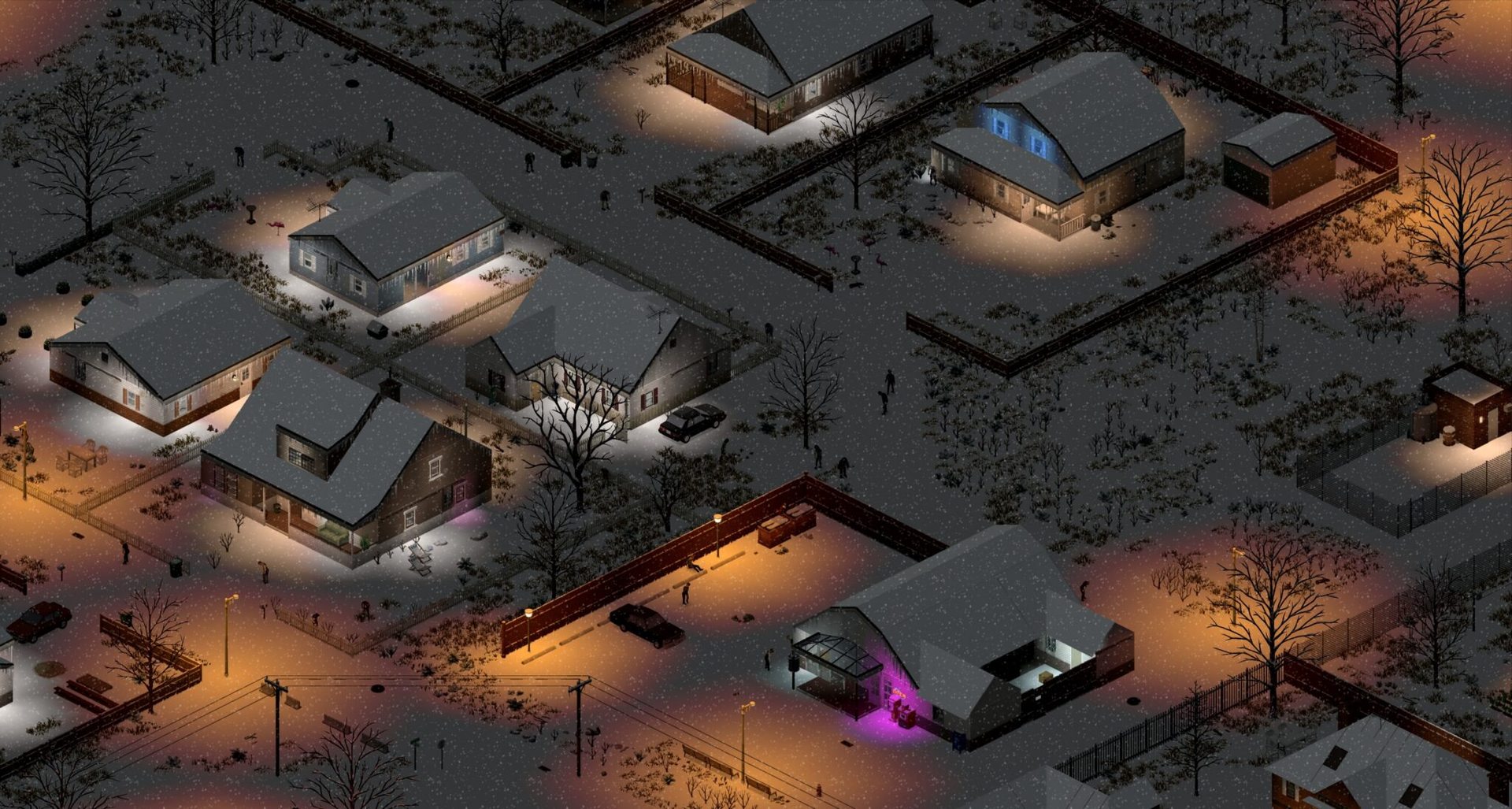
A snowy night in Muldraugh: lighting and seasonal surfaces can change how a familiar street looks. Compare building and road outlines before deciding the geography differs.
© The Indie Stone · Official Build 42.20 screenshot · 42.20: The Big Glow Up
Open the larger image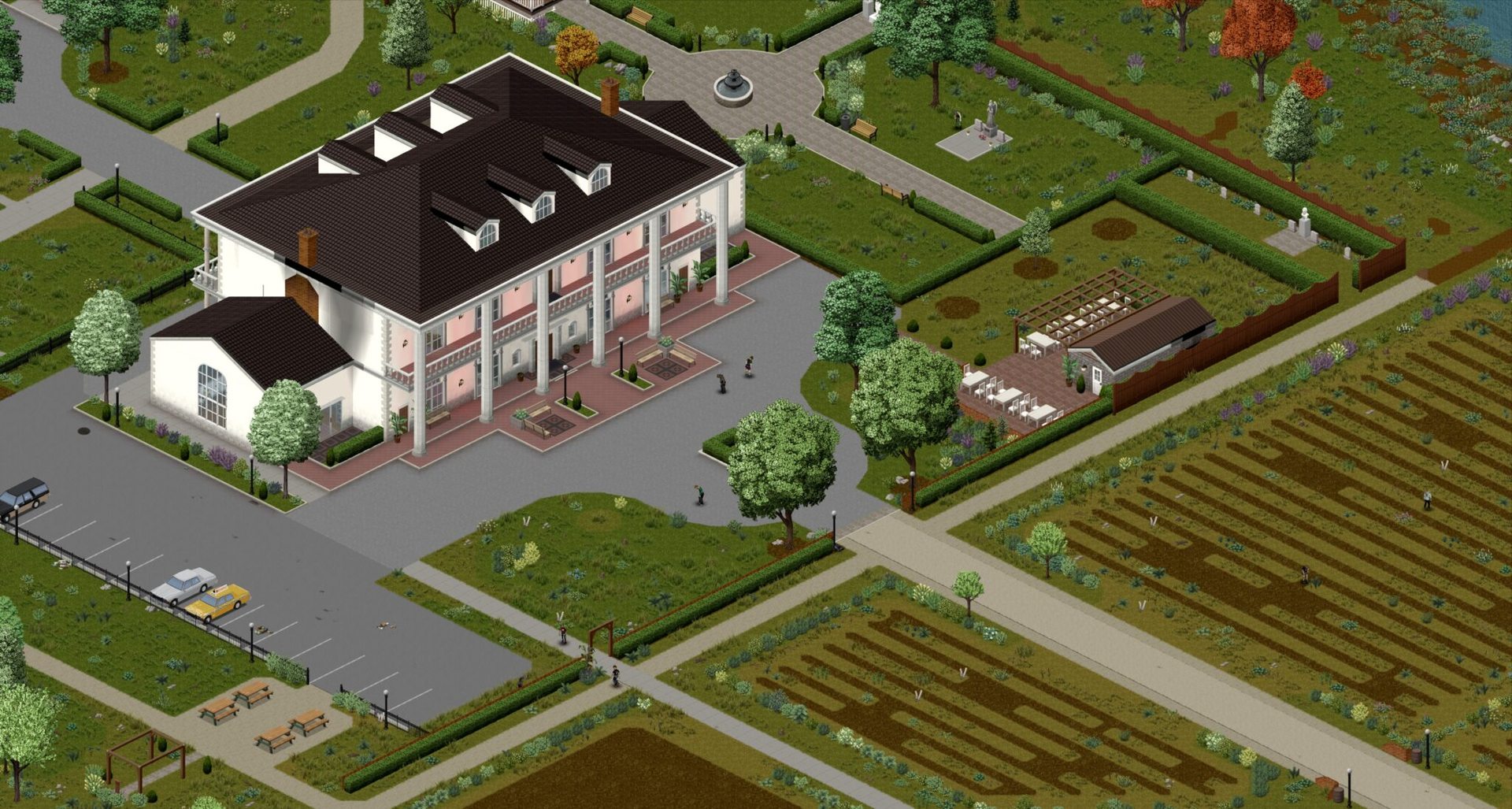
West Point plantation: compare the long building and garden arrangement when locating this author-labelled landmark. This image does not establish proximity to Town Hall.
© The Indie Stone · Official Build 42.20 screenshot · 42.20: The Big Glow Up
Open the larger image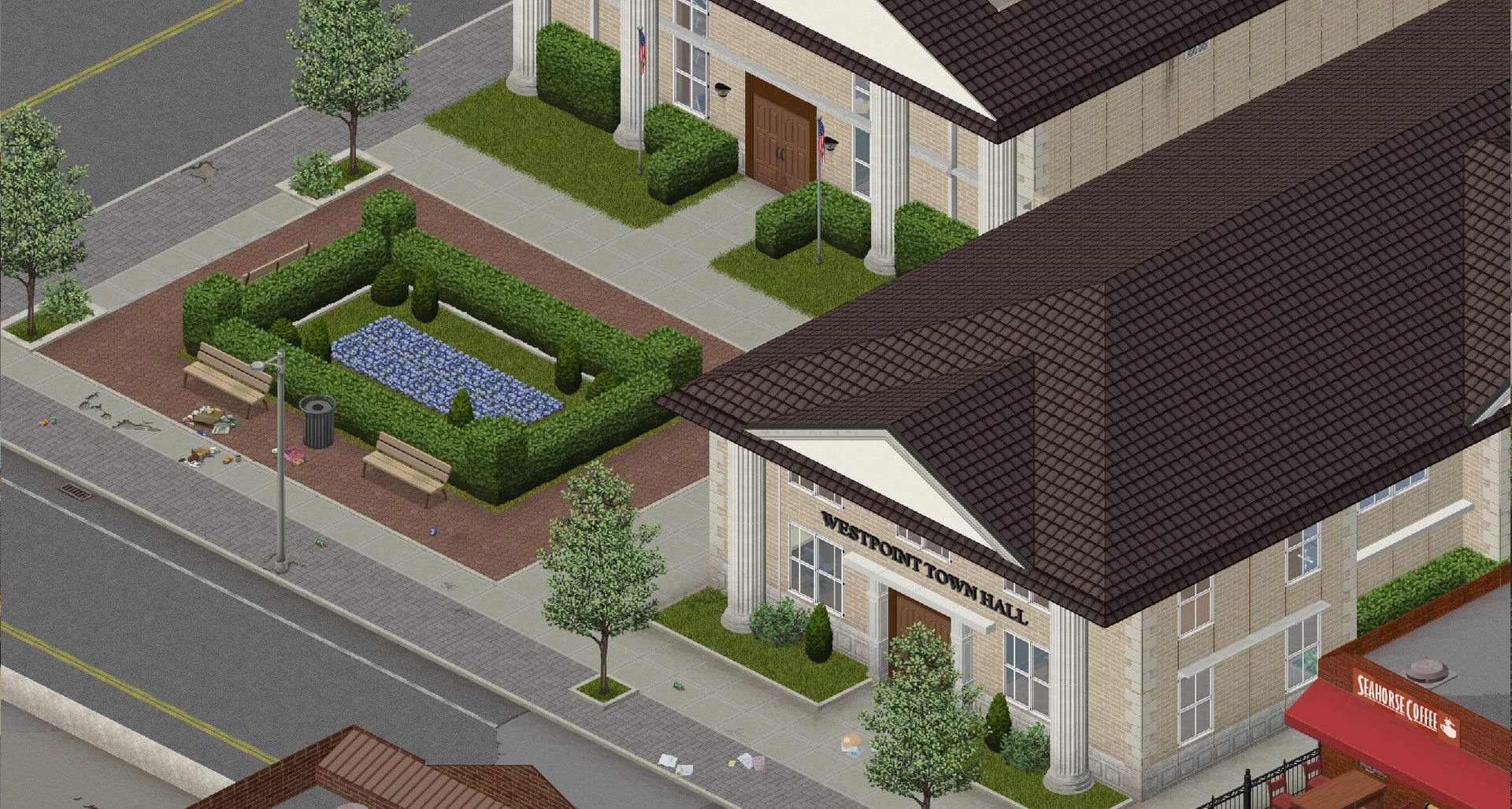
West Point Town Hall: the front sign and approach distinguish this public building; verify its block and floor in the render you selected.
© The Indie Stone · Official Build 42.20 screenshot · 42.20: The Big Glow Up
Open the larger imageSource: The Indie Stone · 42.20 comparison and town gallery · Official map update · 27 July 2026
Find a destination on ZomboidMap
- Open the operator link above. Select the town, or enter its name in the search field. If you have coordinates, the field also accepts an x, y pair.
- Keep the POI categories relevant to this trip: for example Grocery and Medical for supplies, or Hardware for a tool stop. Reduce unrelated markers so the destination and road approach remain readable.
- For a specific object, use Survival finds rather than guessing from a building name. Water wells and Gas pumps are separate object filters. A marker shows a mapped object, not a promise of usable water, power, fuel or loot in your save.
- Zoom to the building and compare floors. The displayed help assigns [ and ] to floor down/up and right-click to coordinates or measurement. Note which floor you inspected.
- Write down a nearby junction and a return destination as well as the target. Confirm the same outline and access path when you reach it in game.
Source: Open ZomboidMap · town and resource search · Independent map operator · displayed Build 42.20
Share coordinates without mixing units
PZmap exposes three coordinate display choices: Cell, Chunk and Tile. A pair copied under one choice must not be read as another. Keep the exact display type with the numbers; do not apply an old cell-to-tile conversion from memory when switching map modes.
For a useful location report, include the map URL, displayed build, coordinate type, x/y, floor and a landmark. A screenshot of the same marker and surrounding roads helps another player check whether they selected the right map. A position is not a teleport instruction: an administrator must still verify the destination and command requirements.
Map location note
Map URL / displayed build:
Game version / map mods:
Coordinate display: Tile / Chunk / Cell
X / Y / floor:
Town / nearby landmark:
Road approach / return point:
Fill in the actual map readings. No coordinates are pre-filled or verified by this site.
Source: Open PZmap · B42/B41 map and coordinate tools · Map operator interface · reviewed 12 October 2026
If the map is blank, missing a town or different from the game
A downloaded picture, an older wiki link and an interactive map can describe different snapshots. Keep the conflicting evidence rather than moving or deleting world files to make the game match a website.
| What you see | Next check |
|---|---|
| Blank map or only text | Allow the map application to finish loading; confirm JavaScript is available. Try the other operator link to distinguish a site-loading problem from missing geography. |
| Old-looking town or absent new buildings | Compare full game version, map-render label and B41/B42 selection before looking for a replacement save. |
| A marker seems to be inside the wrong building | Check floor, coordinate display type and marker placement. Compare nearby junctions rather than one icon. |
| Surface matches, basement differs | Check the lower floor, render/game version and known seed/mod conditions. Follow the basement guide; a surface render is not a save-specific underground layout. |
| A modded location is missing | Confirm the exact map mod and load configuration. A vanilla map does not show every custom world. |
| A well or street name is missing | Check the relevant object/streets layer and zoom; absence of a label is not proof the object or road cannot exist. |
Source: Open PZmap · B42/B41 map and coordinate tools · Map operator interface · reviewed 12 October 2026
Reveal the map with All Known On Start
For a new Custom Sandbox world, enable All Known On Start in In-game Map before creating the world. Keep Allow World Map enabled so you can open it; Allow Mini-Map is a separate choice. Browsing an external map does not change these game settings.
The setting names and new-world behavior come from the version-labelled wiki. The official Java API separately exposes mapAllKnown, allowWorldMap and allowMiniMap. These sources do not establish a tested 42.21 multiplayer result or an automatic change to an existing character.
- Start a new game using Custom Sandbox, choose the starting location and the preset you want to customize. Keep your existing save separate.
- Open In-game Map settings. Turn on Allow World Map and All Known On Start; enable Allow Mini-Map only if you also want the minimap.
- Finish creating that new world and open the in-game map. Pan away from the starting area to check the intended revelation rather than assuming a saved checkbox is proof.
- Save, exit and reload the test world. If the result changes, record the full build and mode before changing additional options.
Source: PZwiki · Custom Sandbox: In-game Map · Community wiki · 41.78.16-labelled settings reference
Source: The Indie Stone · SandboxOptions.Map API · Official Java API · option existence
Set the option for a new Host world
The historical developer guide uses Host > Manage Settings > Edit Selected Settings. Choose the profile for your new test world and its sandbox Map group; do not assume the sample servertest name is your active profile. In configuration terms the option is Map.MapAllKnown, distinct from allowing the world map to open.
- With the hosted session stopped, open Host and Manage Settings. Create or select a separate test profile, then edit that selected profile.
- Find its sandbox In-game Map/Map group and enable All Known On Start with Allow World Map. Preserve unrelated options and save the profile.
- Start that same new profile, join and inspect an area away from spawn. Have another player compare the result if testing multiplayer.
- Reconnect and restart normally, then compare again. A joiner cannot override this world setting with a client-only preference.
Source: Aiteron · Configure server settings, Build 41 MP · Developer-authored historical configuration guide
Source: The Indie Stone · SandboxOptions.Map API · Official Java API · option existence
If the revealed map disappears or the setting has no effect
A 42.18 multiplayer report described map revelation disappearing after a restart or login even with MapAllKnown enabled; MP QA confirmed that historical issue. This is a reason to test persistence, not proof that your current patch has the same defect.
Check full patch, the active profile, saved option, map permission, mods and whether the world is new or existing. Compare a disposable vanilla world and keep the original save. This guide does not claim that editing an existing profile retroactively reveals every old character, or that deleting map data fixes a reset.
If the mismatch is reproducible, preserve the settings and before/after screenshots for support. Do not install an old community JAR patch merely because an older forum thread mentions one. For an external map mismatch instead, return to the version, coordinate and floor checks above.
Source: The Indie Stone · 42.18 revealed-map reset report · Historical Build 42 report with MP QA confirmation
Choose the next branch
Sources & verification
These guides compare public map interfaces and attributed reference material. PZ Manual has not run a game route, surveyed current loot or verified the map against a local 42.21 installation. Route choices and recording checklists are original editorial advice.
- Open ZomboidMap · town and resource searchInterface rechecked 13 October 2026: displayed Build 42.20, Rosewood/Riverside town entries, Fire Dept/Police/Hardware/Grocery/Medical POIs, Wells/Gas pumps filters, right-click coordinate copying and [ / ] floor controls. Rosewood search became stuck/timed out; no exact POI coordinates or share link were verified. Independent fan-made map; exact 42.21 tile coverage, save state and routes remain untested.
- Open PZmap · B42/B41 map and coordinate toolsPublic interface exposes B42/B41 & Mapping grid modes, Cell/Chunk/Tile coordinate display, POIs, Streets and Basements. Created by Calvy; hosting credited to The Indie Stone. A map render is not a live view of your save.
- The Indie Stone · 42.20 comparison and town galleryReviewed 13 October 2026. Official comparison says Build 42 doubled surface area and identifies western additions Brandenburg, Ekron and Irvington. The 42.20 gallery separately labels Rosewood downtown / Kentucky State Penitentiary and Riverside Sunset Bar / Art gallery. Images are orientation references, not exact current-game coordinates or loot evidence; no square-kilometre total is supplied.
- PZwiki · Custom Sandbox: In-game MapReviewed 12 October 2026. Retrieved revision edited 25 October 2025, labelled 41.78.16 with possible automatic 42.13.1 updates. Names Allow World Map, Allow Mini-Map and All Known On Start; the last reveals map data at the beginning. Current-build defaults and old-save application were not tested.
- The Indie Stone · SandboxOptions.Map APIReviewed 12 October 2026. Lists separate boolean mapAllKnown, allowWorldMap and allowMiniMap fields. Confirms the option model, not UI navigation, a patch-specific default or multiplayer persistence.
- Aiteron · Configure server settings, Build 41 MPReviewed 12 October 2026; updated 15 February 2022. Documents Host > Manage Settings > Edit Selected Settings and the Map group in SandboxVars, including MapAllKnown. Used for the configuration route, not a guarantee for old saves or a tested 42.21 session.
- The Indie Stone · 42.18 revealed-map reset reportReviewed 12 October 2026. May 12 report describes map revelation disappearing after reconnect/restart despite MapAllKnown=true; MP QA confirmed that report. Does not establish current 42.21 status. No community JAR patch or save-data deletion is recommended.